AI Motion Control: A Complete Guide to Motion-Controlled Video Generation
Learn how character images and motion references can guide a new performance, and how to prepare and review your inputs.
AI video generation makes it possible to create animated characters and cinematic scenes from images and text. However, controlling exactly how a character moves can still be challenging.
A text prompt can describe a person dancing, walking, turning around, or making a specific gesture. But the generated movement may not match the intended timing, posture, or sequence of actions.
AI Motion Control gives creators a more direct way to guide character movement using a reference video.
Instead of describing every movement in words, you can provide a character image and a video showing the actions you want to reproduce. The AI uses the character image to guide the character's appearance and the motion reference to guide the movement in the generated video.
Depending on the model, motion control can also help guide body posture, gestures, facial expressions, and the timing of an action.
This approach makes character animation more controllable and gives creators a practical way to reproduce specific movements without recording every shot with their own characters.
In this guide, you'll learn what AI Motion Control is, how motion transfer works, how to prepare reference materials, and how to improve the quality of your generated videos.
What Is AI Motion Control?
AI Motion Control is a video generation technique that uses motion references to guide how a character moves in a generated video.
In a typical motion-control workflow, you provide two primary inputs:
Character Image: Defines the character's visual appearance, such as facial features, hairstyle, clothing, and body proportions.
Motion Reference Video: Shows the movement you want the generated character to follow, such as walking, dancing, turning, or performing a gesture.
Some workflows also allow you to enter a text prompt to describe the scene, background, lighting, or visual style.
The AI combines these inputs to generate a new video in which the character follows the referenced movement while retaining important visual characteristics from the supplied image.
For example, imagine that you have a portrait of a digital character and a short video of a person performing a dance.
With AI Motion Control, you can use the character image to guide the generated character's appearance and the dance video to guide the movement. The result is a newly generated animation rather than a simple copy of the original footage.
The key idea is to separate how the character looks from how the character moves.
The character image provides visual identity. The motion reference provides movement guidance. The prompt, when available, adds creative direction for the scene and its presentation.
By combining these inputs, motion control offers a more structured way to create character-driven videos.
Full-body movement
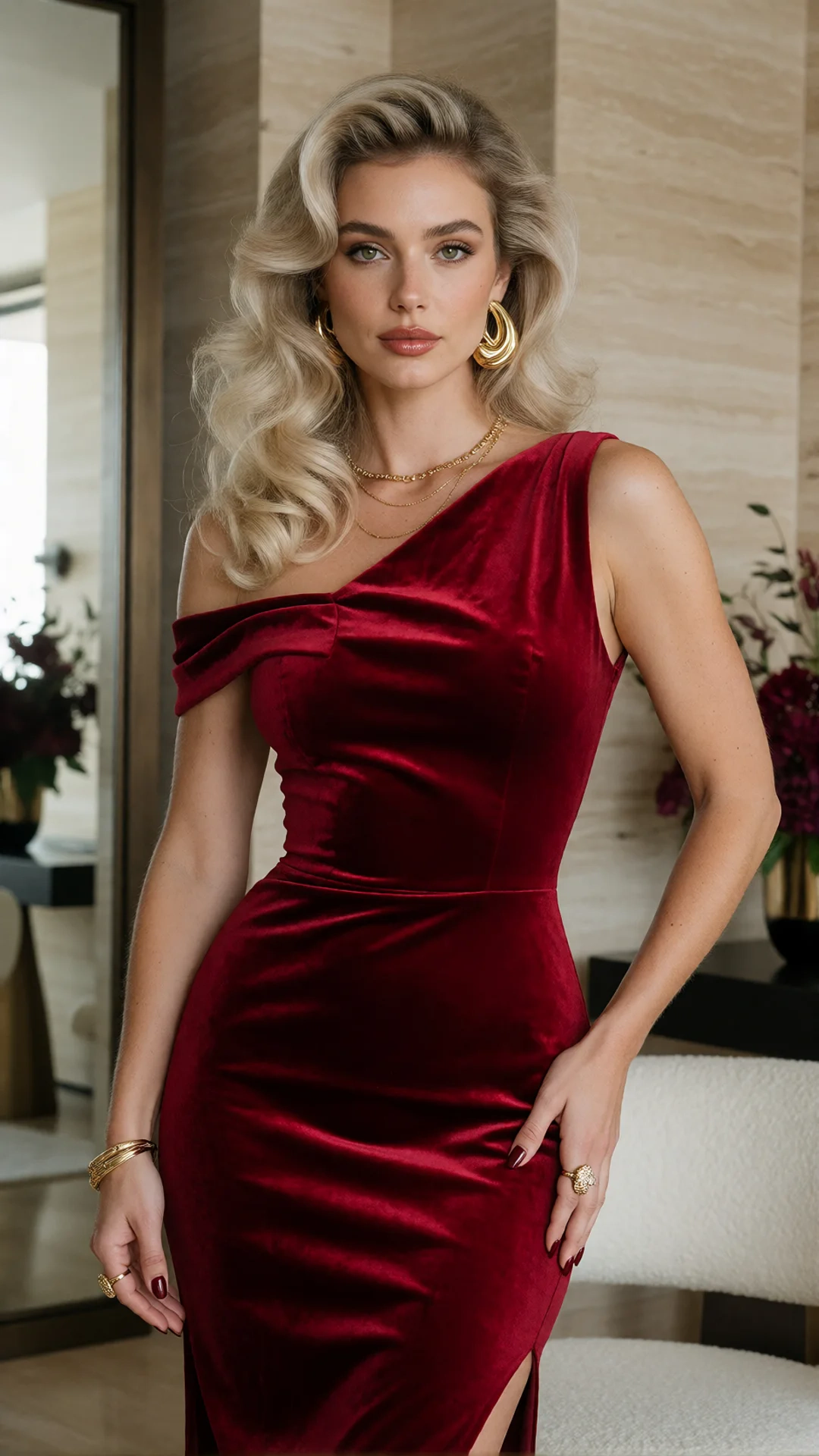
Upper-body movement
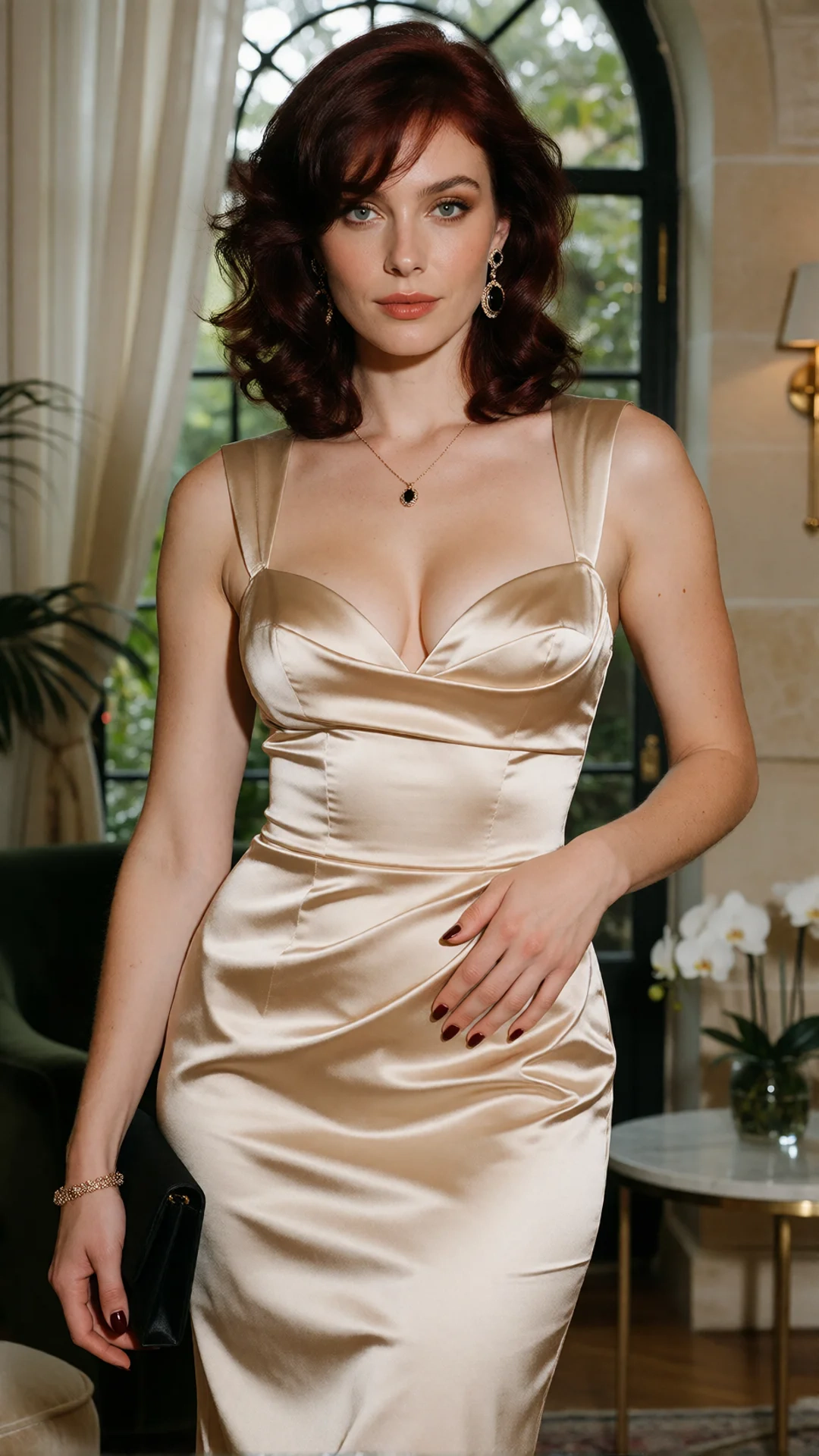
Two characters
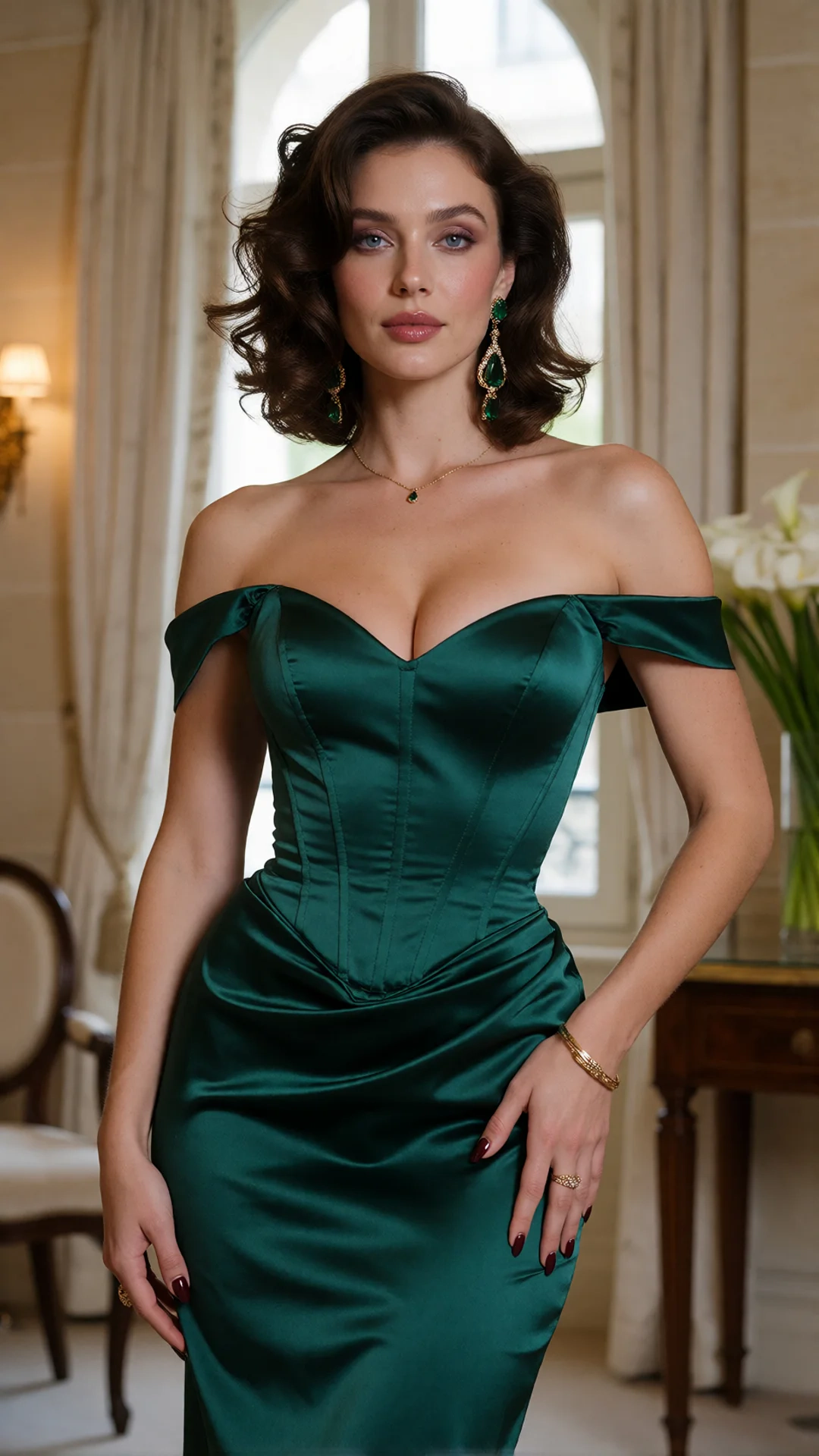
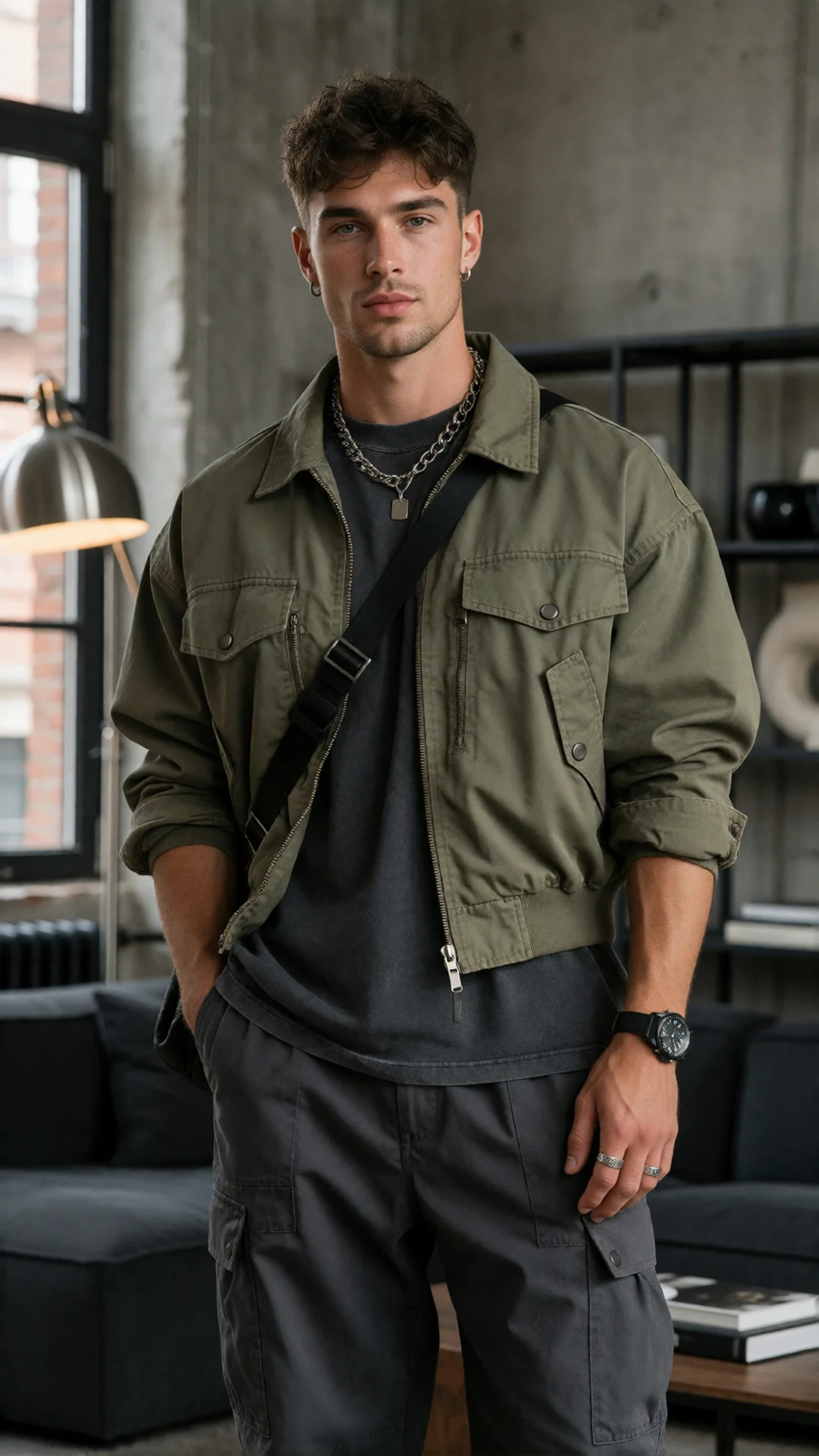
Facial expression
How Does AI Motion Control Work?
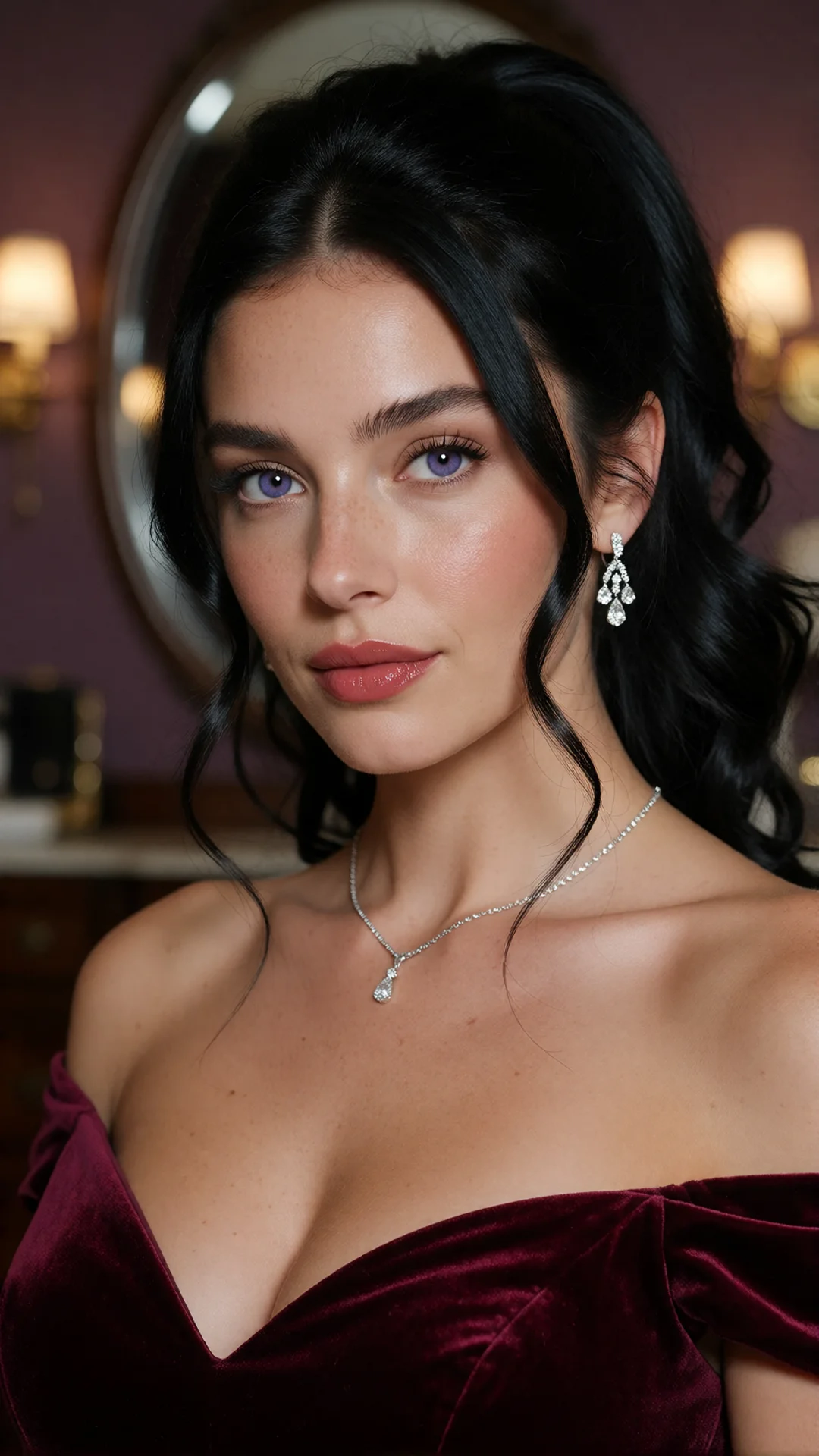
1. Character Understanding: Establishing Appearance
The first step is establishing the visual appearance of the character.
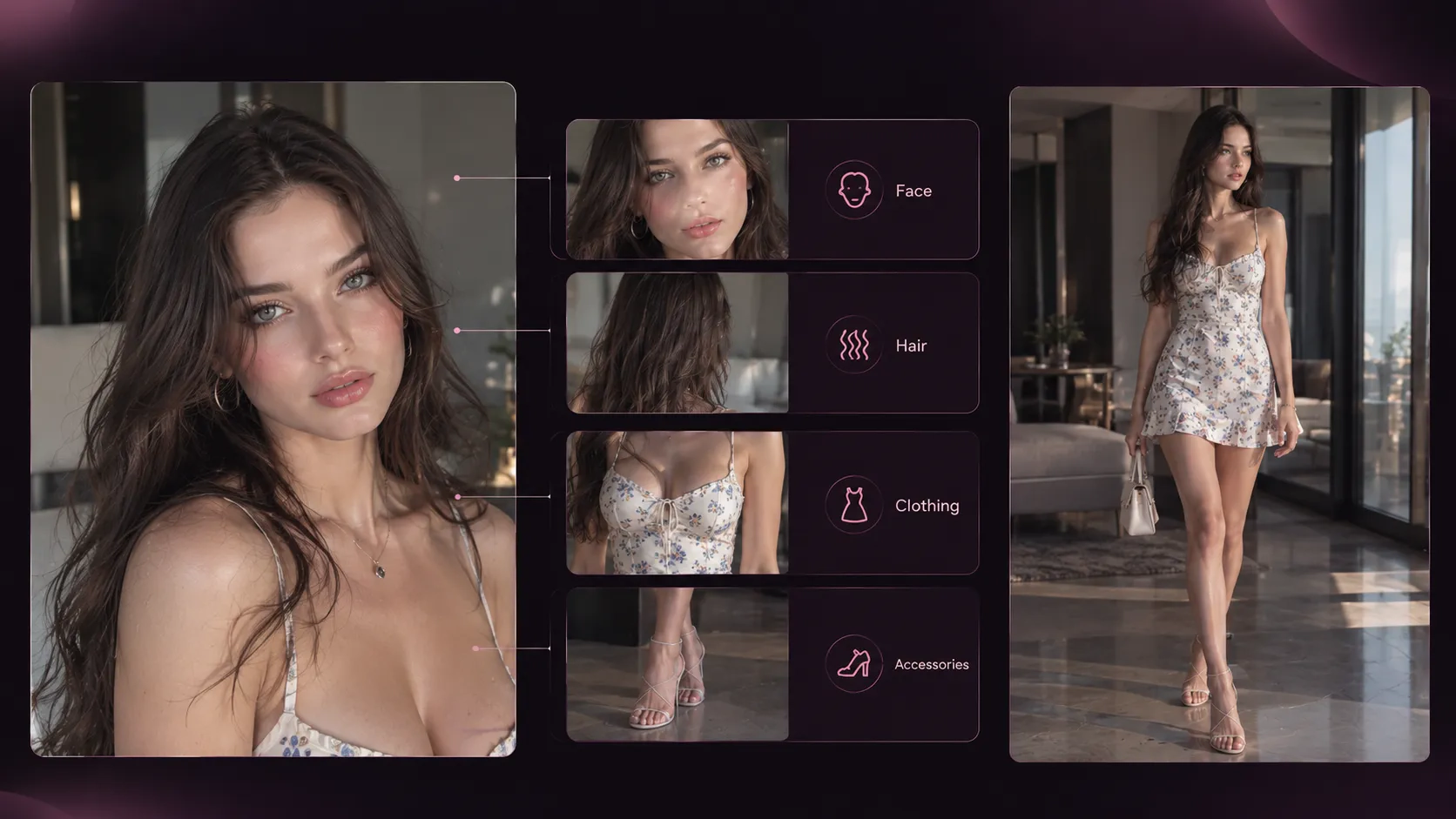
The AI analyzes the character image to understand important visual features, which may include:
Facial structure and appearance Hairstyle and clothing Body proportions Overall character design
These details provide the visual reference for the generated video.
The quality of the character image matters because the model needs enough visual information to reproduce the character during movement.
For example, a clear full-body image provides information about the character's overall proportions and clothing. A close-up portrait provides more detail about the face but may offer less information about the body.
Choose an image that shows the parts of the character that need to remain recognizable throughout the movement.
2. Motion Understanding: Analyzing the Reference Video
The second step is understanding the motion reference.
Rather than treating the reference video as a collection of unrelated images, a motion-control model needs to interpret how the subject changes position over time.
Depending on the model, relevant movement information may include: Body posture and changes in pose Direction and range of movement Arm and leg movements Hand gestures Timing and rhythm Facial expressions and head movement, when supported
For example, a reference video of someone turning around contains more than a final standing pose. It shows the sequence of movements used to complete the turn.
If the subject is frequently hidden, the movement is excessively fast, or the video contains abrupt cuts, the model may have difficulty interpreting the intended action.
3. Motion Transfer: Generating the Character's Movement
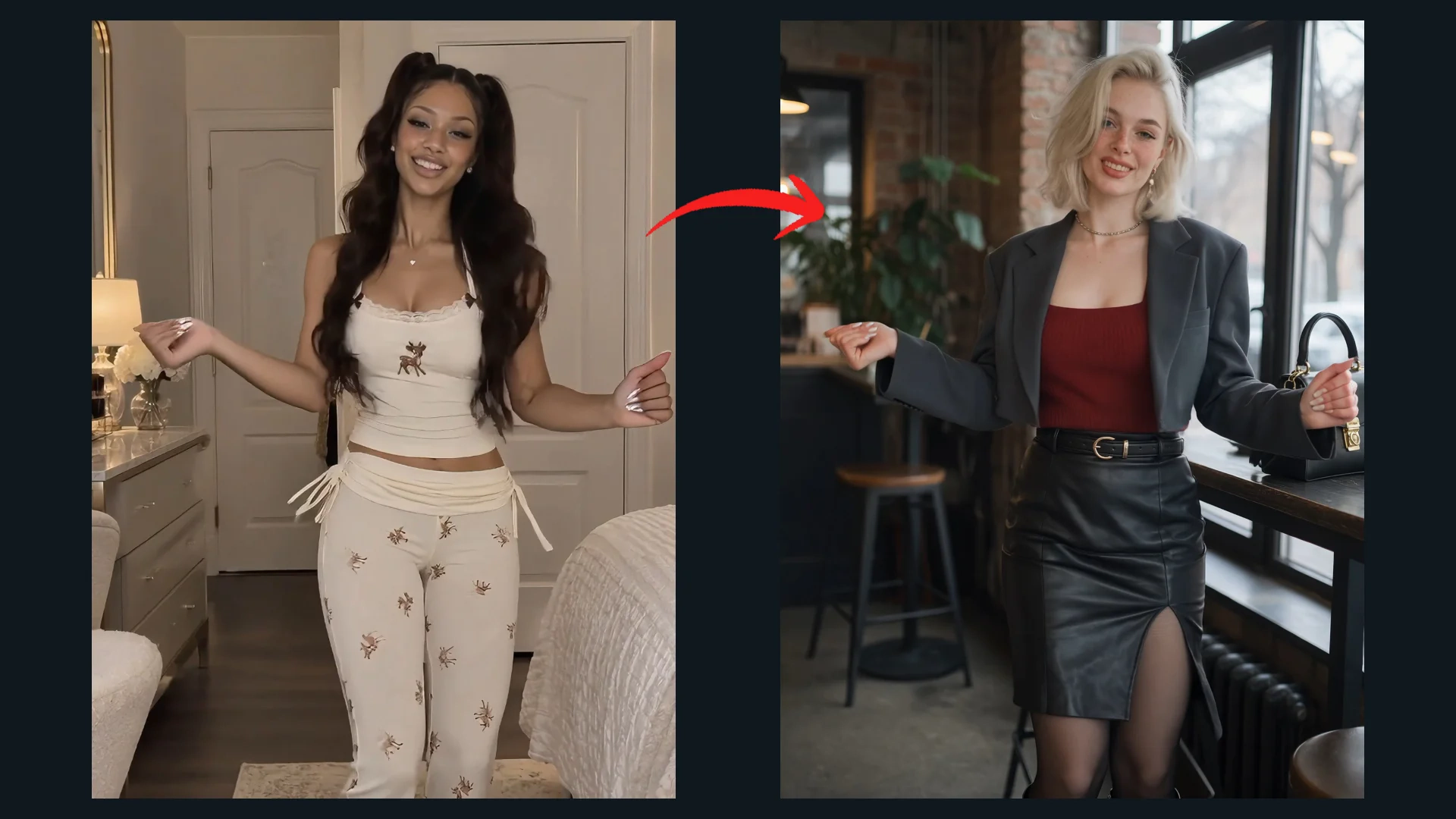
Once the character appearance and reference movement have been established, the model generates a new video that combines the two.
The character follows the motion guidance while the model synthesizes the visual details of the output.
The generated result may retain important characteristics of the original character while reproducing the general movement pattern from the reference.
For example: Character Image: A stylized character wearing a red jacket. Motion Reference: A person walking forward, turning toward the camera, and raising one hand. Generated Video: The stylized character performs a similar sequence of movements.
The goal is not necessarily to reproduce every source frame pixel for pixel. Instead, the model uses the motion reference to guide a newly generated performance.
The accuracy of the transfer depends on factors such as the clarity of the source materials, the difference between the character and the reference subject, the complexity of the movement, and the capabilities of the model.
Motion Control vs. Reference to Video: What's the Difference?
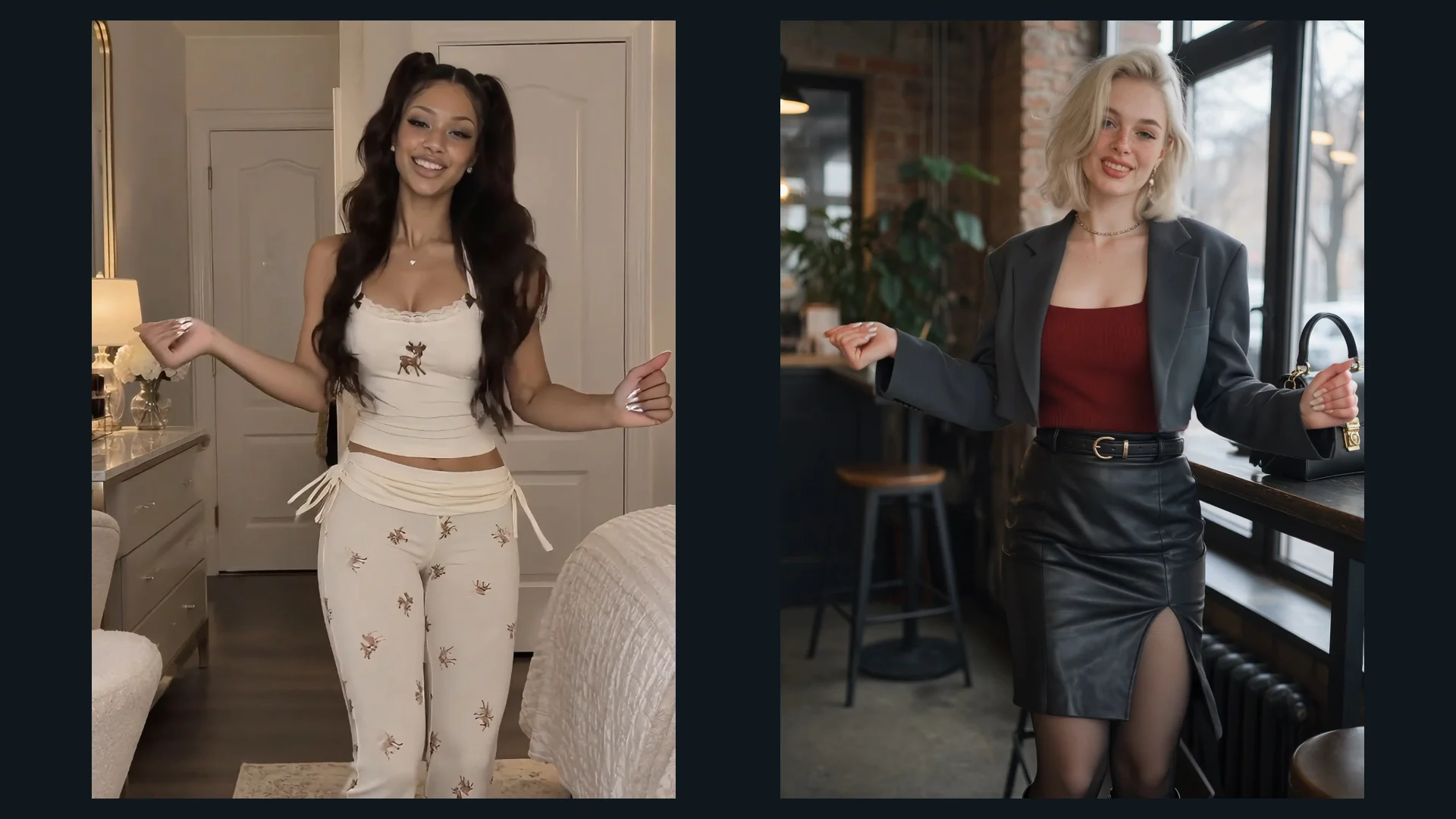
AI Motion Control and Reference to Video both use visual references to guide video generation, but they focus on different aspects of the creative process.
Motion Control focuses on how a character moves, while Reference to Video focuses on using visual references to guide the generated content.
| Feature | Motion Control | Reference to Video |
|---|---|---|
| Primary Goal | Reproduce or guide specific movements | Guide video generation with visual references |
| Typical Inputs | Character image + motion reference video | Images, videos, and text instructions |
| Main Focus | Body movement, gestures, poses, and action timing | Character appearance, objects, environments, and visual style |
| Role of References | The video provides motion guidance, while the image defines the target character | References provide visual information that guides the generated result |
| Best For | Character animation, dance replication, and controlled performances | Creating videos with consistent characters, products, scenes, or visual styles |
When Should You Use Reference to Video?
Choose Reference to Video when you want to guide the generated video's visual content using reference materials.
For example, you can provide multiple images of a character, a scene reference, and a short video to give the model additional visual context. These references help guide the character's appearance, environment, and overall visual direction.
The key difference: Motion Control prioritizes movement guidance, while Reference to Video prioritizes visual guidance. Depending on the model, their capabilities may overlap, and video references can also provide motion-related information.
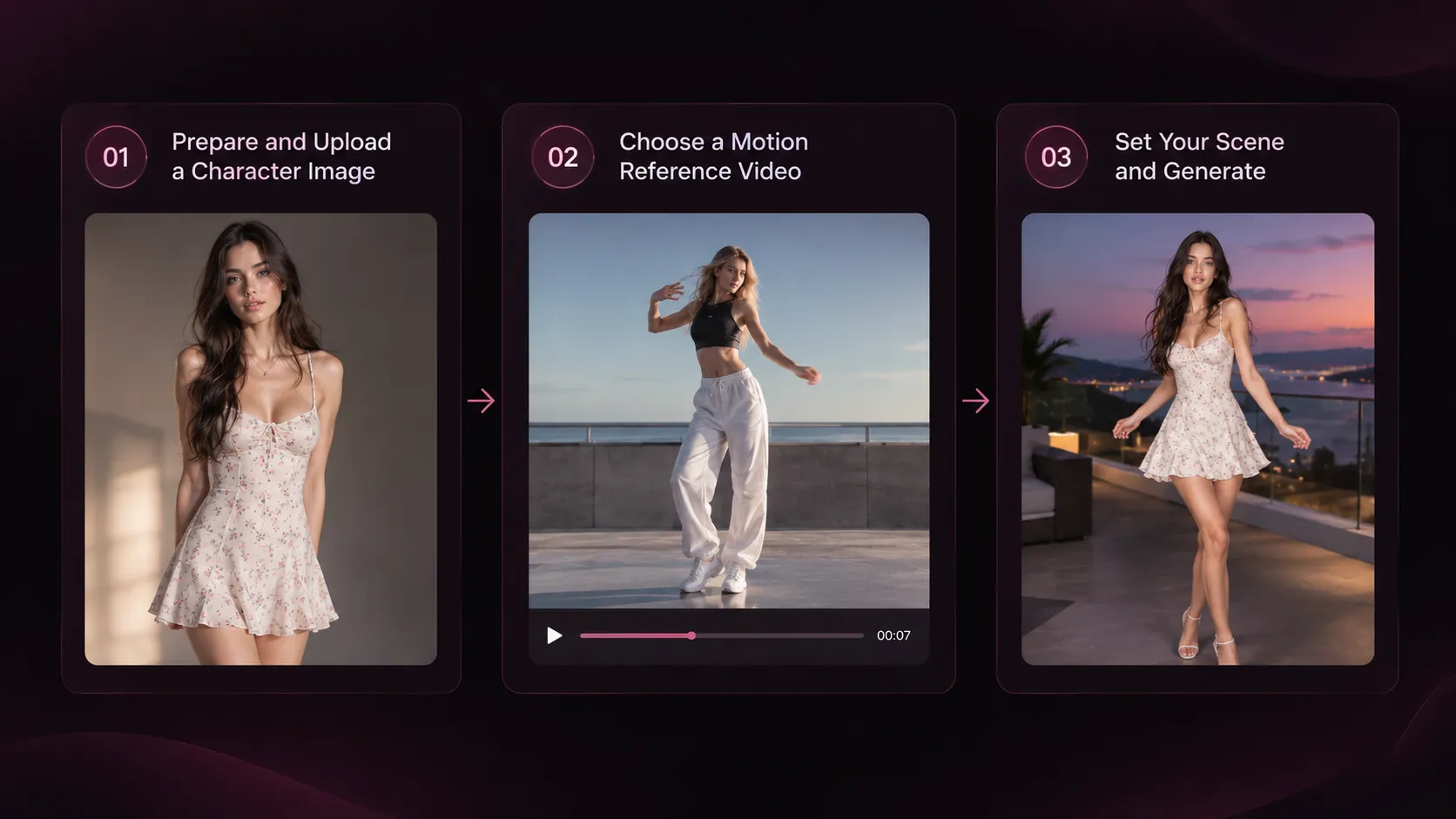
How to Create a Video with AI Motion Control
The exact interface varies between platforms, but the general workflow is straightforward.
Step 1: Choose a Character Image
Upload the image of the character you want to animate.
Choose an image that clearly shows the features relevant to your intended movement. A full-body dance generally benefits from a full-body image, while a performance focused on facial expressions or upper-body gestures may work with a closer composition.
Pay attention to the character's visibility, lighting, and overall image quality. Avoid references in which important features are hidden or difficult to distinguish.
Step 2: Upload a Motion Reference Video
Select a video that demonstrates the movement you want to reproduce.
A good reference should show the action clearly from beginning to end. For example, if you want your character to walk forward and turn toward the camera, choose footage in which both parts of the action are visible.
When possible, use a continuous shot with a clearly visible subject. Check that the movement and framing are suitable for the target character image.
Step 3: Set the Scene and Generate
If the tool supports text prompts, use them to describe the visual details that are not fully defined by the character image or motion reference.
You can specify the environment, lighting, framing, and overall visual style. For example, you might place a referenced dance performance in a modern studio with soft lighting.
Keep the instructions focused and avoid contradicting the movement shown in the reference video. Once the inputs are ready, generate the video and review the result.
Check whether the character follows the intended movement, retains a recognizable appearance, and renders clearly throughout the clip. Motion: Does the character follow the intended movement and timing?
Appearance: Does the character remain recognizable throughout the clip?
Visual quality: Are the body, face, clothing, and surrounding scene rendered clearly?
If the result does not match your expectations, identify the main problem before changing the inputs. A poor motion match may require a clearer reference video, while changes in character appearance may call for a better character image.
Improving the relevant input is often more effective than repeatedly changing unrelated parts of the prompt.
Best Practices for Better Motion Control Results
The quality of motion-controlled video depends on both the reference materials and how well they work together.
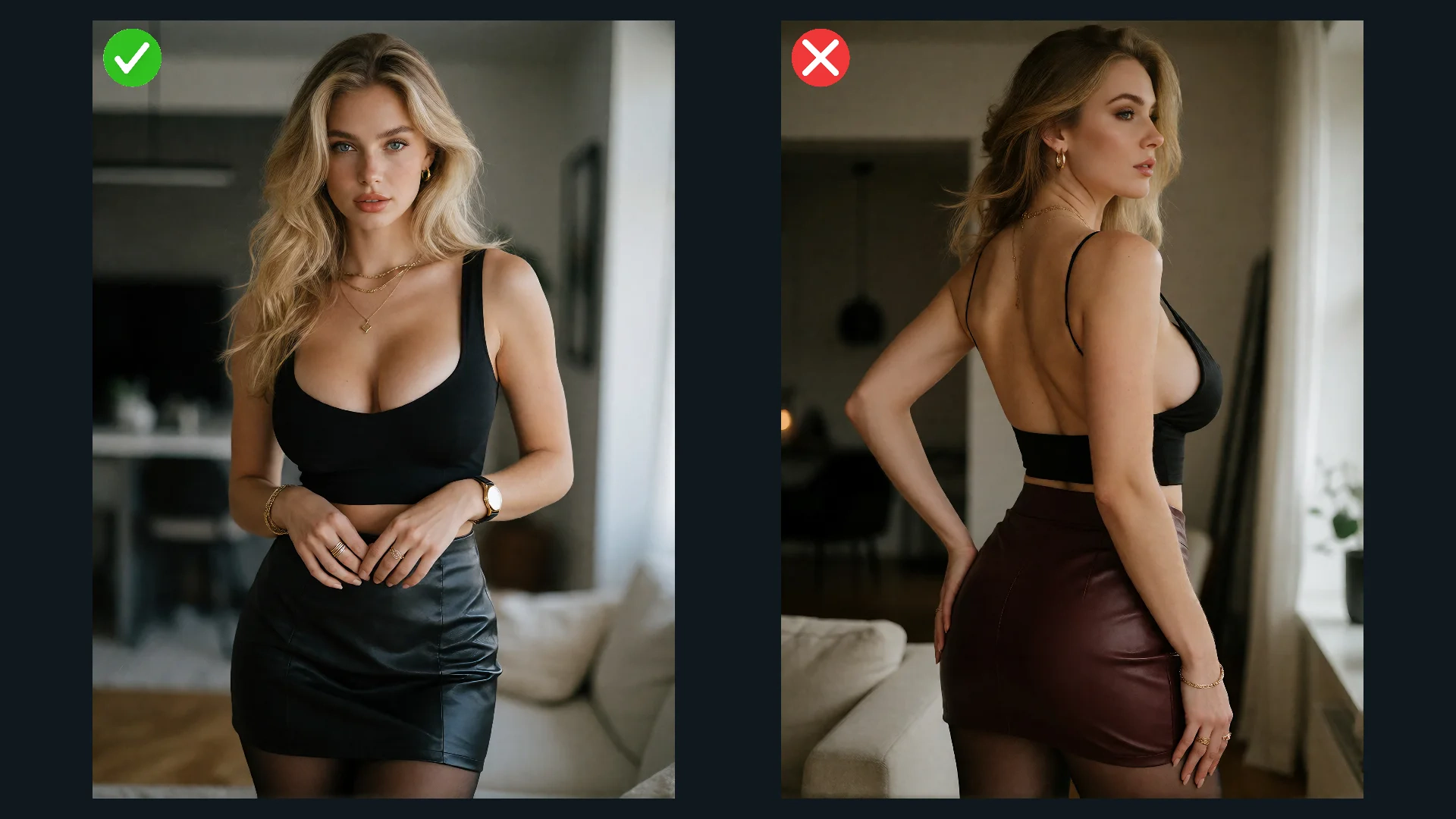
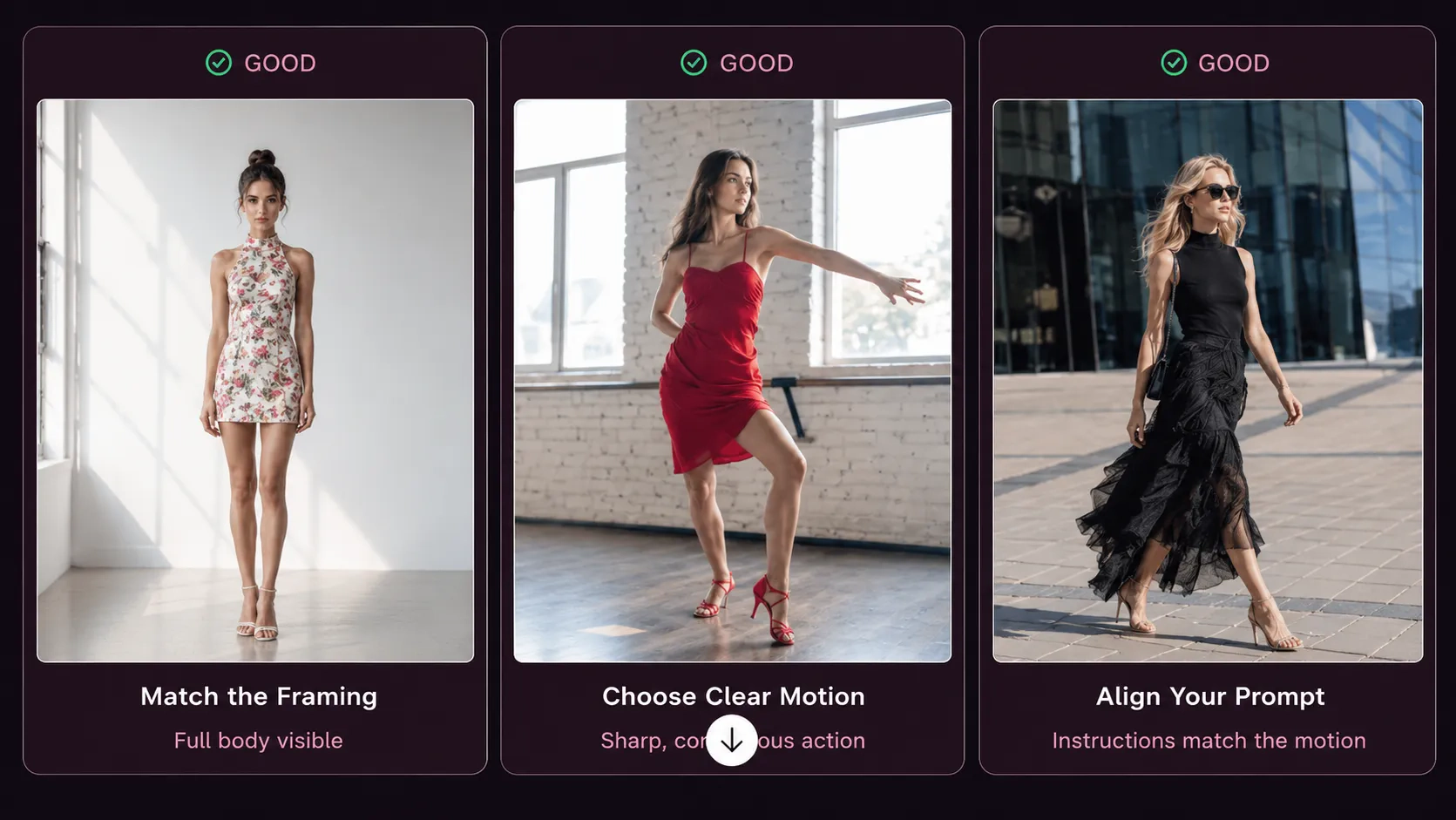
Match the Framing to the Intended Movement
Choose a character image that shows the body parts needed for the intended action.
For full-body movements, use an image that clearly shows the character from head to toe. For upper-body performances, a half-body image may be sufficient.
Matching the general framing of the character image and motion reference can help the model interpret the intended movement. For large movements, leave enough space around the character so that the action is not constrained by the original composition.
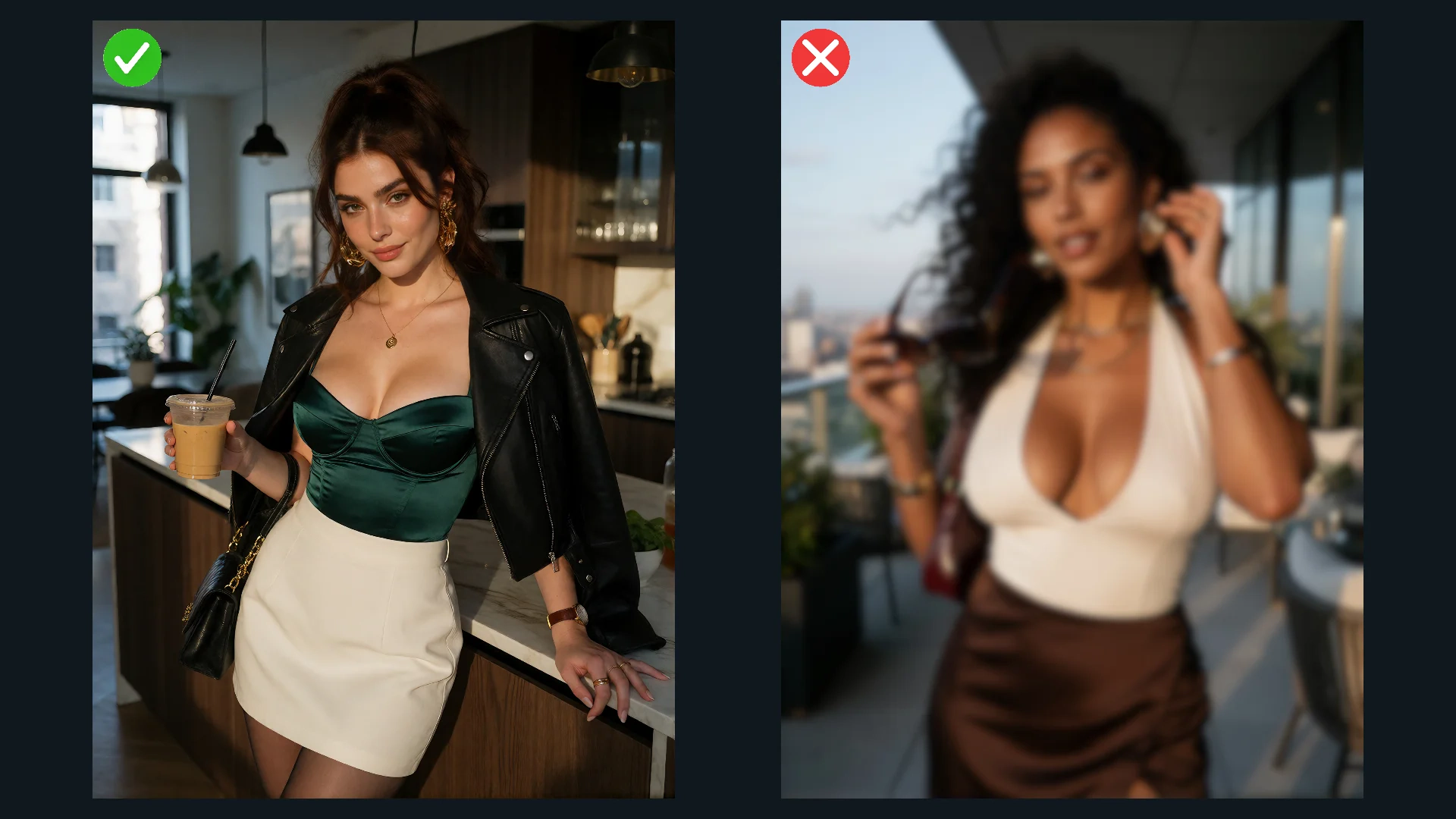
Use a Clear, Continuous Motion Reference
Choose a video in which the main subject is easy to follow.
Avoid unnecessary cuts, heavy blur, and camera shake. These can make it more difficult for the model to interpret the intended motion consistently.
When possible, begin with one clear action rather than a reference containing several unrelated movements.
Keep Prompts Focused
When text prompting is available, use it to guide the scene and visual presentation rather than restating every movement in the reference.
For example, if the reference shows a character walking forward, the prompt can describe the surrounding environment and lighting. Avoid adding instructions that conflict with the referenced movement.
Focused instructions make it easier to identify which input needs adjustment when the generated result is not as expected.
Improve the Input That Matches the Problem
If a generated video does not meet your expectations, identify whether the issue comes from movement, appearance, or scene presentation.
Movement does not match: Try a clearer reference video with a more visible action. Character appearance changes: Use a clearer image that shows the relevant facial and body details. Limbs look distorted: Choose footage in which the limbs are visible and the movement is easier to follow. The composition feels constrained: Use a character image with more room around the subject. The background or lighting is incorrect: Refine the prompt if the tool supports scene instructions.
Changing the relevant input is often more effective than rewriting every part of the prompt. These adjustments can improve the result, although they cannot guarantee perfect motion transfer.
| Common Issue | What to Improve |
|---|---|
| Movement does not match the reference | Choose a clearer, continuous motion reference that shows the intended action. |
| Character appearance changes | Use a character image that clearly shows the face and key appearance details. |
| Hands or feet are cut off | Choose a reference video that keeps the relevant body parts visible and provides enough space around the subject. |
| Scene does not match the intended result | Refine the prompt to describe the desired environment, lighting, and camera style. |
Create Videos with Motion Control
AI Motion Control offers a more direct way to guide character movement in AI-generated videos. By combining a clear character image with a well-chosen motion reference, creators can move beyond general descriptions and work with specific actions and performances. Start with a simple movement, use references that clearly show the intended action, and refine the inputs based on the result. Bring your characters to life with Motion Control and turn reference movements into new AI-generated videos.