AI Video Generator

Create videos from text prompts or bring your images to life with AI.

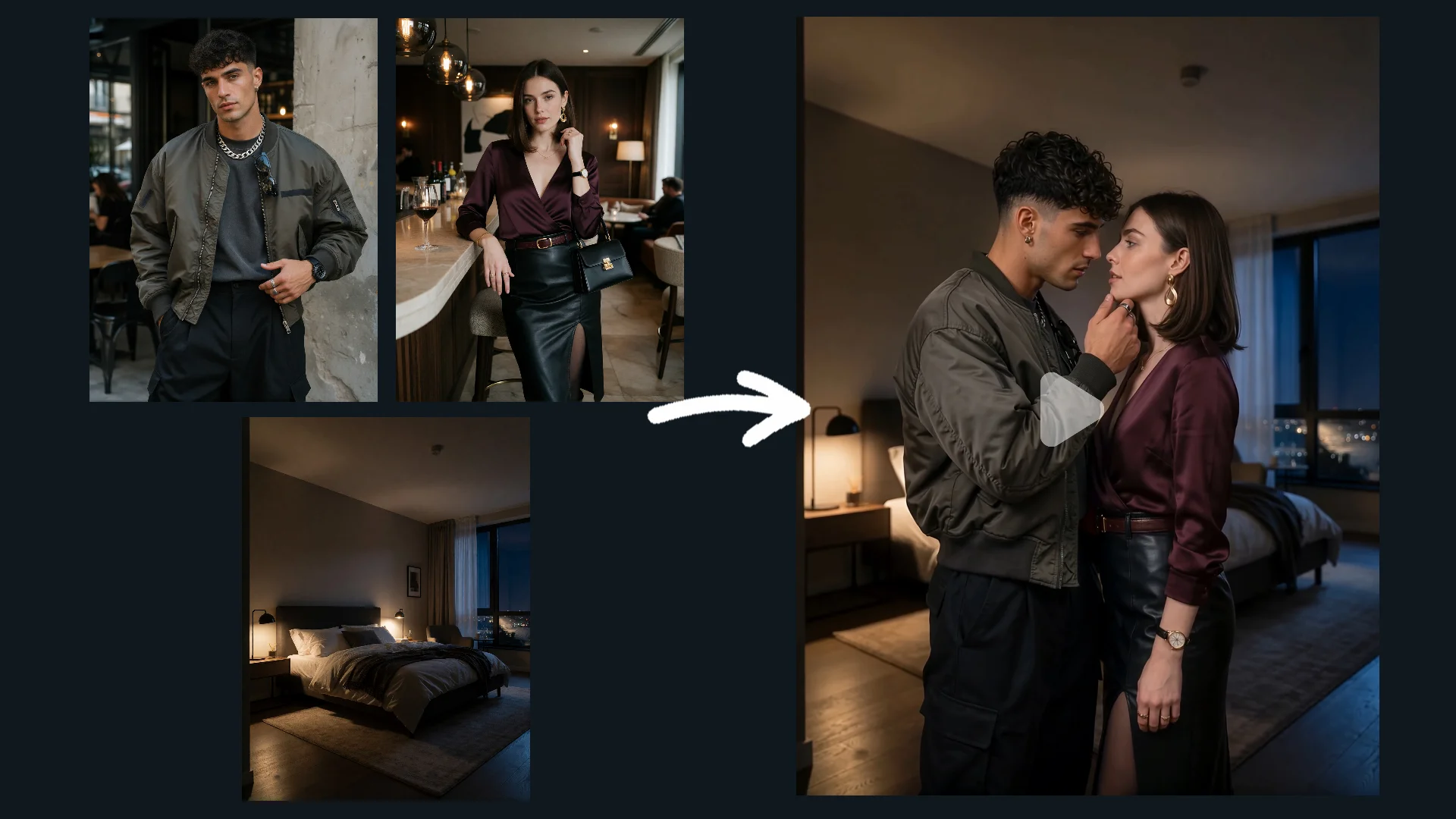
Featured Example

Two Ways to Bring Ideas to Life

Start with a text prompt or bring a still image to life. Explore what's possible with AI video generation.

Text to Video
Image to Video

Prompt Tips

Learn how to describe scenes, bring still images to life, and guide movement with practical prompt examples.

01

Build a Cinematic Scene

Text to Video

Text-led Scene

Prompt idea · Not yet tested

Create a cinematic scene of an adult woman walking alone through a rain-soaked city street at night, holding a black umbrella. She walks past glowing storefronts, slows down beneath a streetlight, then turns her head as if she has noticed someone behind her. Rain falls steadily, reflections shimmer across the pavement, and her coat moves naturally as she walks. Begin with a medium-wide tracking shot from the side, then slowly move closer as she turns. Use moody cinematic lighting, realistic movement, and detailed urban reflections.
02

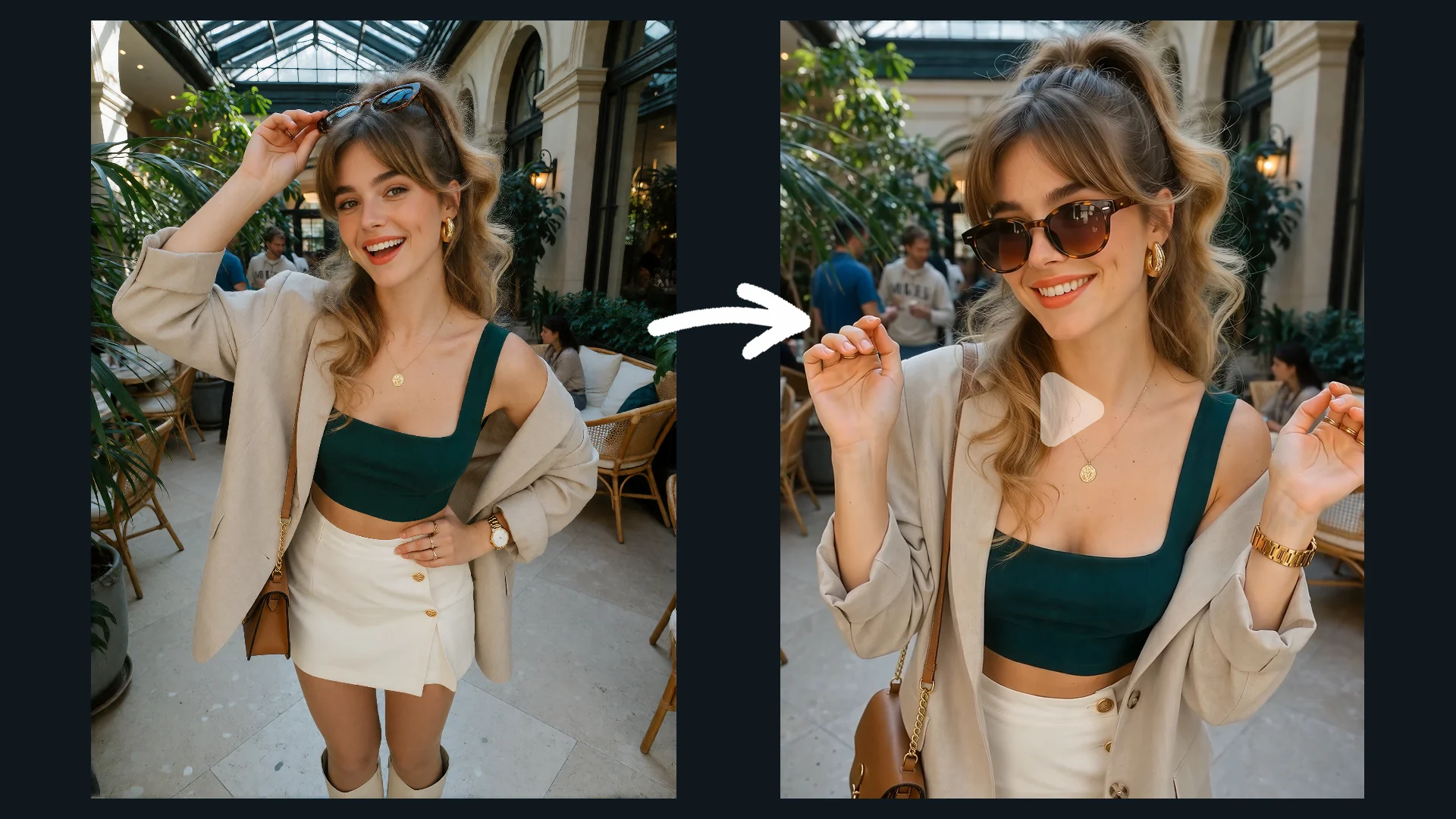
Bring a Still Image to Life

Image to Video

Image-led Beach Scene

Prompt idea · Not yet tested

Animate the adult woman in the uploaded image while preserving the original character, bikini, and beach setting. She takes a few relaxed steps toward the shoreline as the breeze gently moves her hair. She briefly brushes her hair away from her face, looks toward the ocean, then turns back toward the camera with a warm, playful smile. Let the small waves move naturally around her feet. Use relaxed, fluid motion and a subtle camera follow. Keep the overall lighting, colors, and composition close to the source image.
03

Direct the Camera Movement

Image to Video

Coastal Tracking Shot

Prompt idea · Not yet tested

Create a cinematic video of a sleek sports car driving along a winding coastal road at sunrise. The car moves smoothly through a gentle curve, with sunlight reflecting across its body and the ocean visible beyond the guardrail. Begin with a low side-tracking shot close to the moving car, then gradually pull back to reveal more of the coastline as the road curves ahead. Keep the car as the clear visual focus, with natural motion, realistic road contact, and warm early-morning light. Maintain a smooth, continuous camera movement throughout the shot.

Video Generator vs. Reference to Video

Choose your workflow based on how you want to guide your next video: with a text prompt, a starting image, or visual references.

Video Generator
Video Generator

Video Generator

Start with an idea or an image. Enter a text prompt or upload a single starting image, then describe the scene or movement you want to create.

Best for

  • Creating a new scene from text
  • Animating a still image
  • Exploring actions and camera direction
Explore Video Generator
Reference to Video
Reference to Video

Reference to Video

Guide creation with visual references. Use supported image and video references to guide the appearance, scene details, and broader visual direction of the generated video.

Best for

  • Guiding character appearance
  • Establishing scene and visual style
  • Combining supported image and video references
Explore Reference to Video

Frequently Asked Questions

What is an AI Video Generator?

An AI video generator creates a new video from supported starting materials, such as a text prompt or a still image. Available inputs depend on the selected workflow.

Should I start with text or an image?

Start with text to describe a new scene, or use an image when you want a visual starting point. Describe the action and camera direction you have in mind.

What should I include in a text-to-video prompt?

Describe the subject, action, setting, camera direction, and visual style. Keep the instructions clear and avoid conflicting actions.

How should I prompt an image-to-video result?

Describe how the subject or camera should move and which visual details should remain close to the source image. Review the result for unintended changes.

How is Video Generator different from Reference to Video?

Video Generator starts from text or a single image. Reference to Video uses supported visual references to guide a broader set of details in a new scene.

What duration and resolution can I use?

Check the current generation panel for available settings and input requirements. These options depend on the supported configuration.